
Using the App
Main Features for All Platforms
There are three navigation tabs on the upper left describing Scibrarian’s main features: Library, Interests, and Bookmarks.

These features have three different ways to view their data, shown as additional tabs in Scibrarian’s header: Papers, Timeline, and Graph.

Uploading to Your Library
The app defaults to having Library selected. This is where you can upload, view, and analyze PubMed PDFs that you hold. Your library is divided into collections, represented by the dropdown next to the section headers.

To start, you will want to click the dropdown and create a new collection if you don’t have one already.
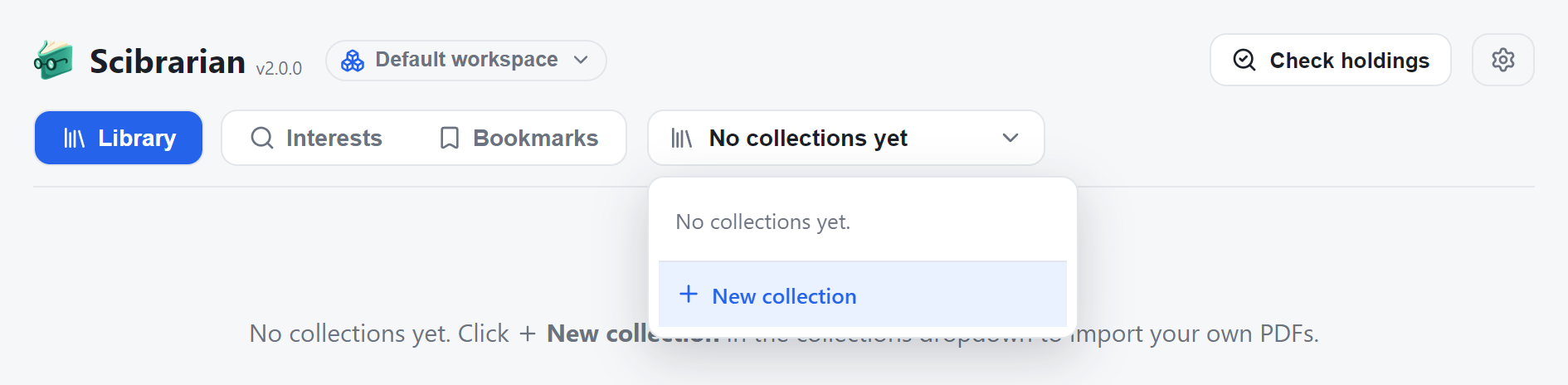
Then, you can click the Add files button to upload papers to the collection that is currently selected. Scibrarian will automatically scan the document for a PMID or DOI and pull the corresponding metadata from PubMed. When a PMID or DOI is not found in certain papers, which can happen if they were published before PubMed was commonly used, those papers will be shown in an Unmatched files table at the bottom.
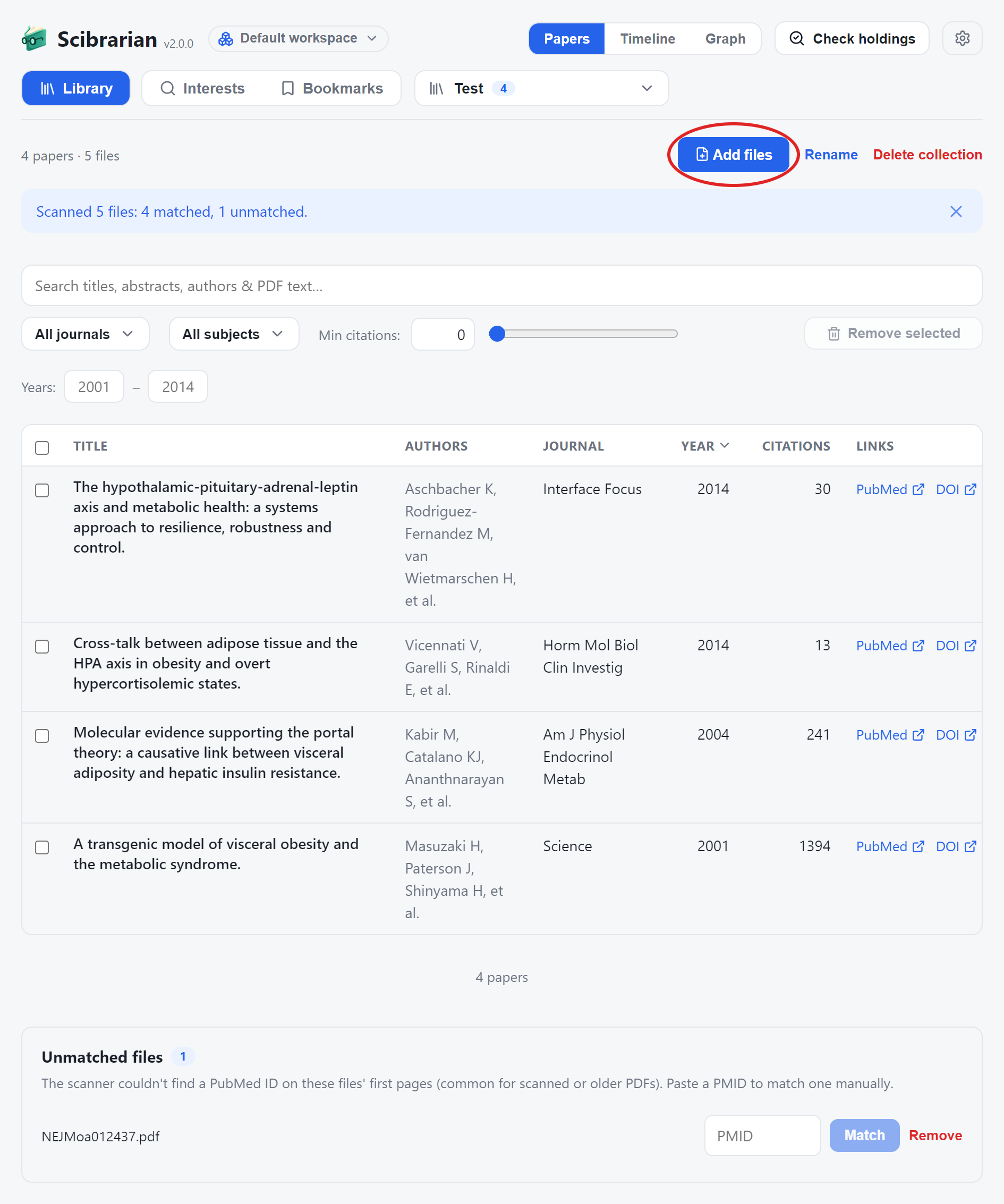
When this happens, you can simply add the PMID manually and the metadata will be correctly pulled. You can open any paper in your library by clicking on it.
Filtering and Analysis
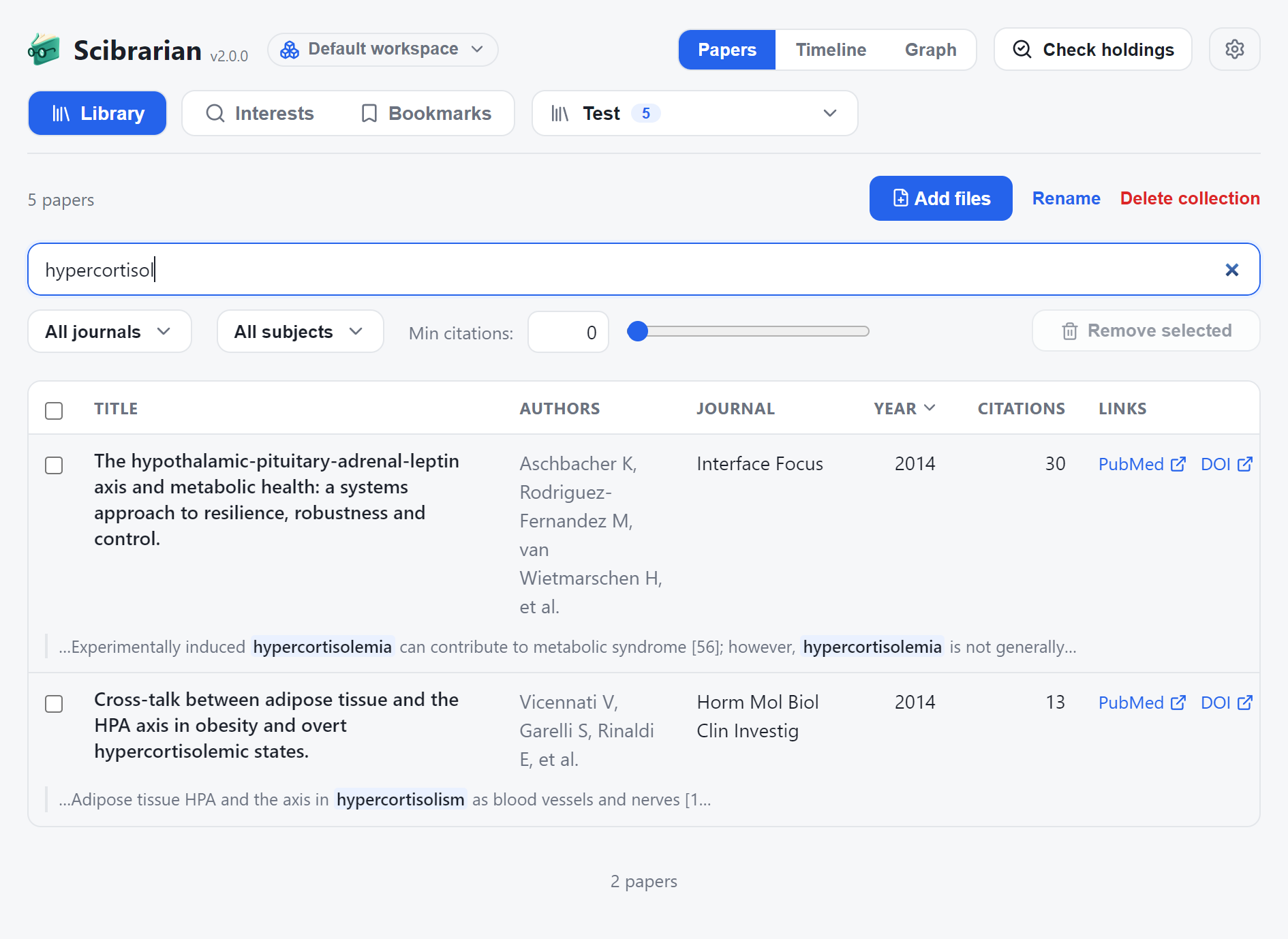
A number of filtering features exist to extract more meaning from your data. First, the search bar; simply enter text to search by titles, abstracts, authors, or content. The content search can be especially powerful for trying to remember which of your papers contained key relevant information. For example, you recall seeing something interesting about hypercortisolemia somewhere in your papers, but you’re not sure. Instead of opening every file and hitting Ctrl+F to figure out where it was, simply use the search bar, and relevant snippets from all papers will show up instantly.
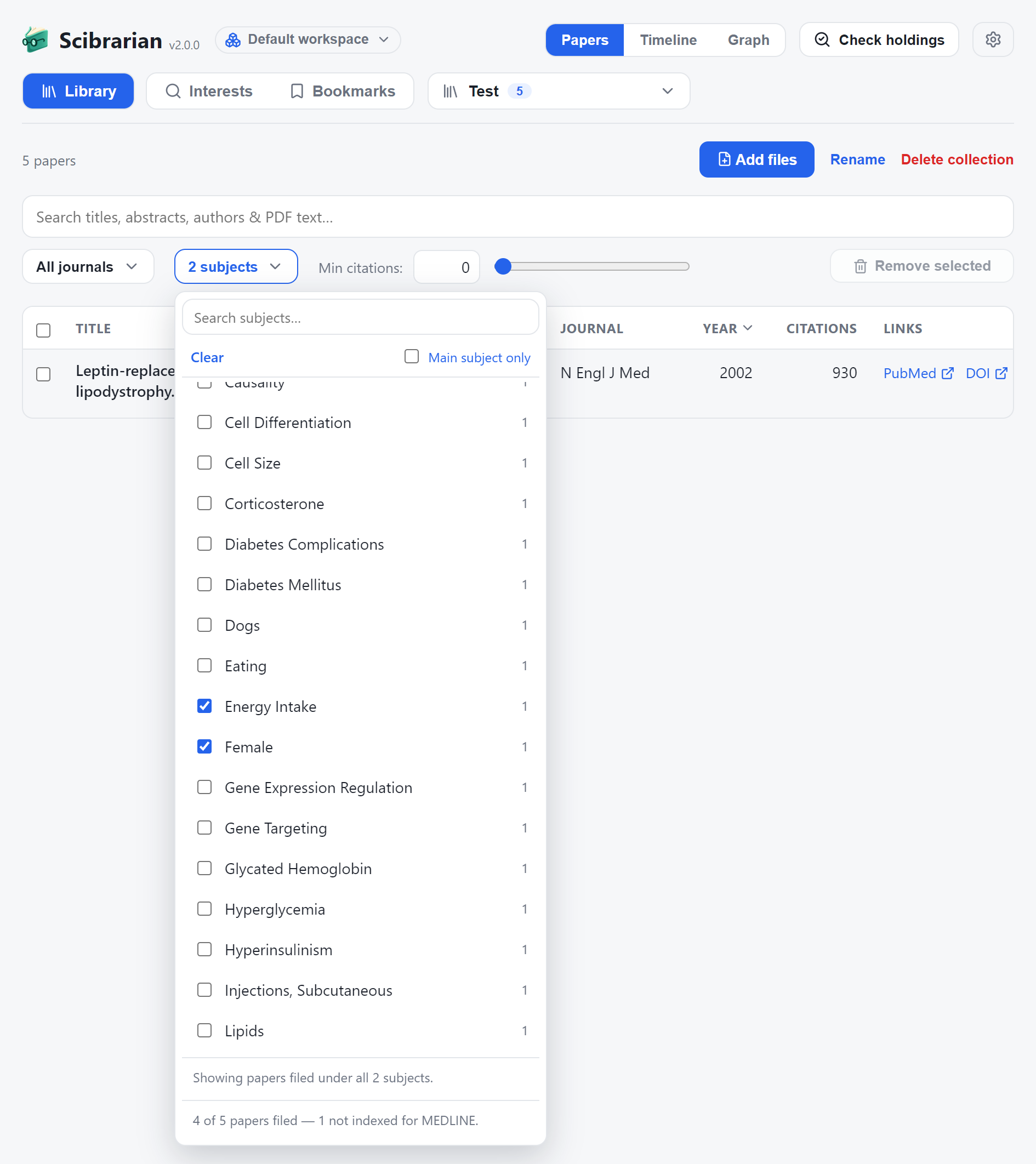
Next, there are dropdowns showing all journals and subjects contained in your library. The subjects are populated via medical subject headings (MeSH). You can filter papers that include any number of MeSH in the subject dropdown. Each checkbox selection makes the filtering criteria more strict; selecting MeSH A and MeSH B will show papers that include both MeSH A AND B. For example, you may want to only see papers that include studies involving women and energy intake.
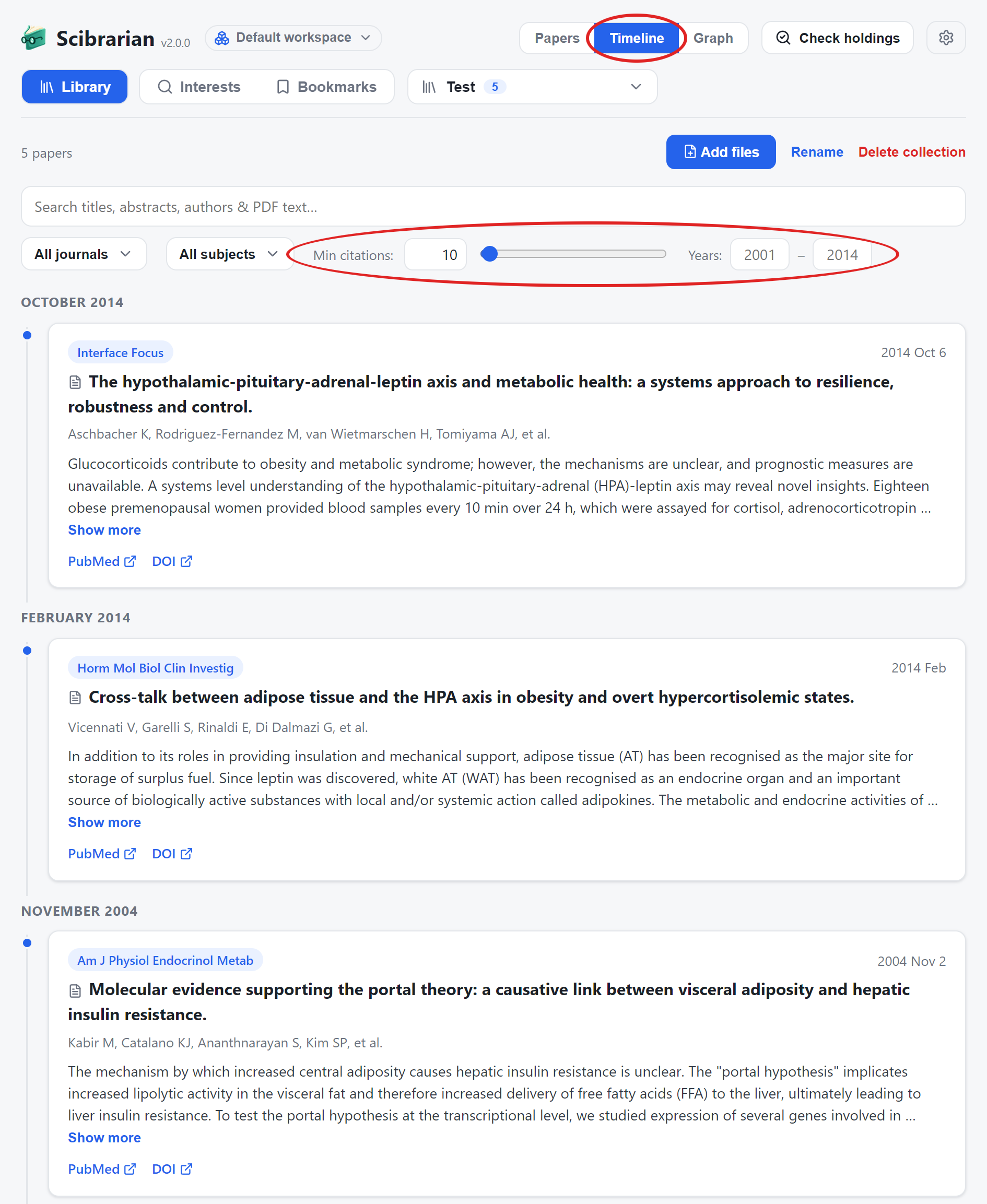
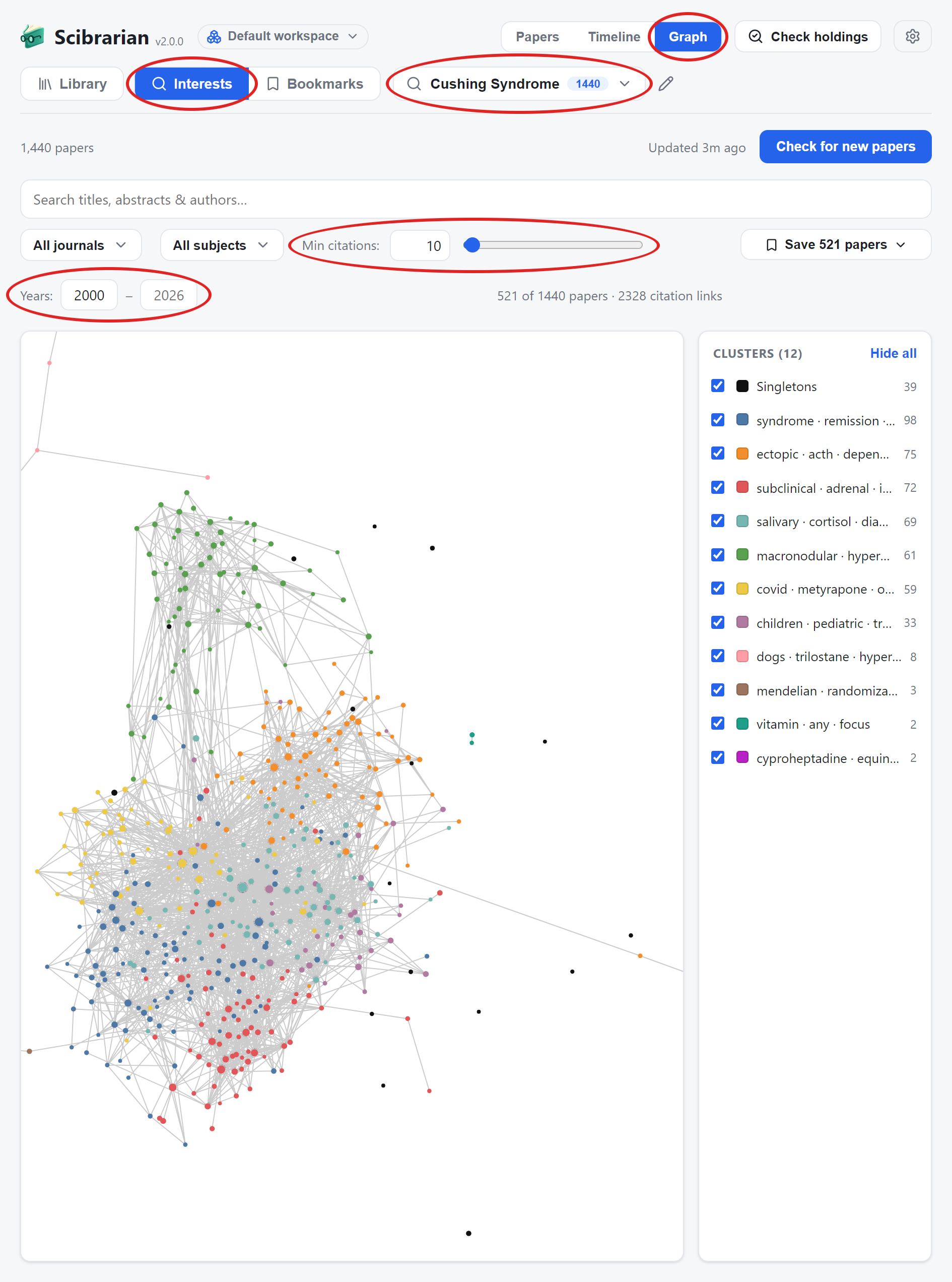
Lastly, the min citations and year range filters make it easy to narrow down papers with the impact and recency of your choice. By default, the Papers view is selected, but the same filtering features are available in the Timeline and Graph views, which offer different ways to visualize your data beyond a simple table.
Researching a Topic
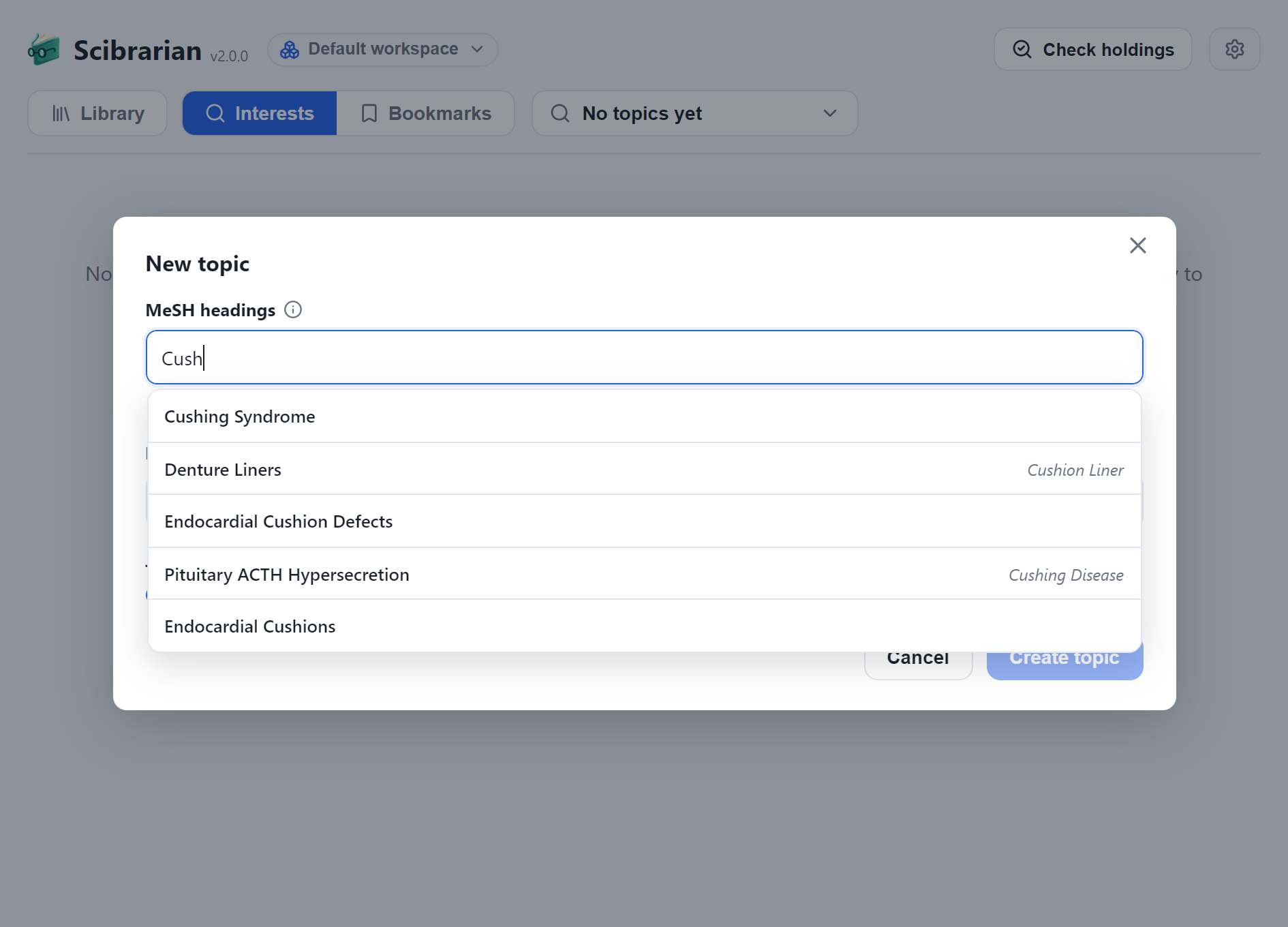
Scibrarian offers a precise way to find relevant papers based on medical subject headings (MeSH) instead of loose keyword associations used by most research platforms. To add topics of interest, click the gear icon on the upper right to open settings, then search for any MeSH term, and/or add the suggested MeSH terms populated from your existing library. As you type, the autocomplete will suggest terms that match directly or via synonyms.
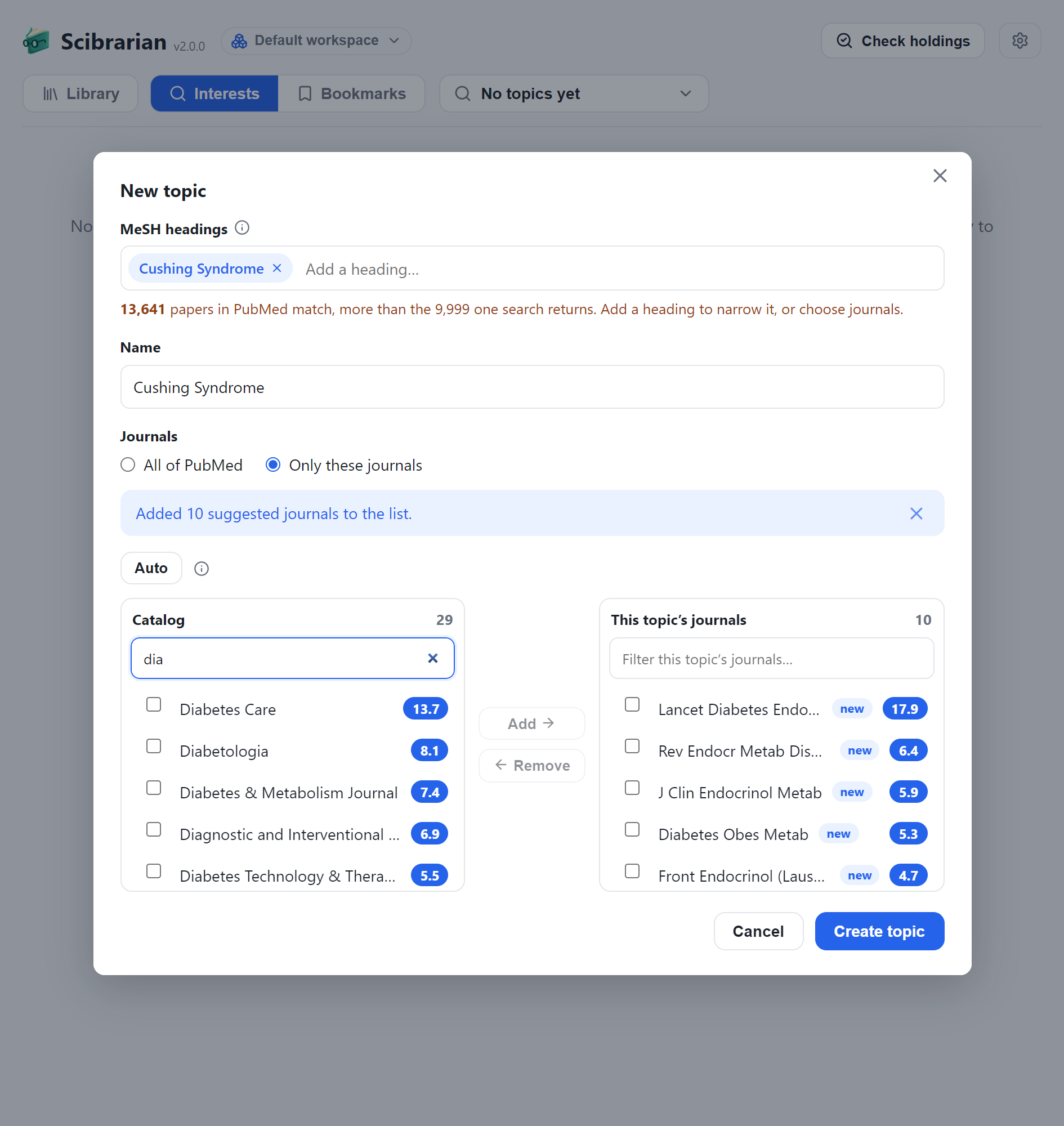
Then, click Manage journals… in the Journals pane to select which journals you want to include in your search results for your topics. Once again, typing will bring up autocomplete suggestions which you can stage into the journals to be added. But additionally, clicking Auto will automatically stage the top 10 journals for each research topic you have selected. The number next to each journal entry is an impact metric sourced from OpenAlex, so that you can easily gauge a journal’s prestige with a quick glance. Alternatively, toggle the Search all PubMed journals switch to ignore journal filtering entirely.
Once that is done, make sure the Interests tab is selected in the main navigation. The same dropdown that included your collections when Library was selected will instead include your selected research topics while Interests is selected. Select a topic of your choice and click Check for new papers to start polling for the most recent 9,999 papers including that topic. You may need to wait a few minutes for the scan to complete, depending on its breadth. You can also run the poll on an automated schedule, configured within the Polling & NCBI panel in the settings.
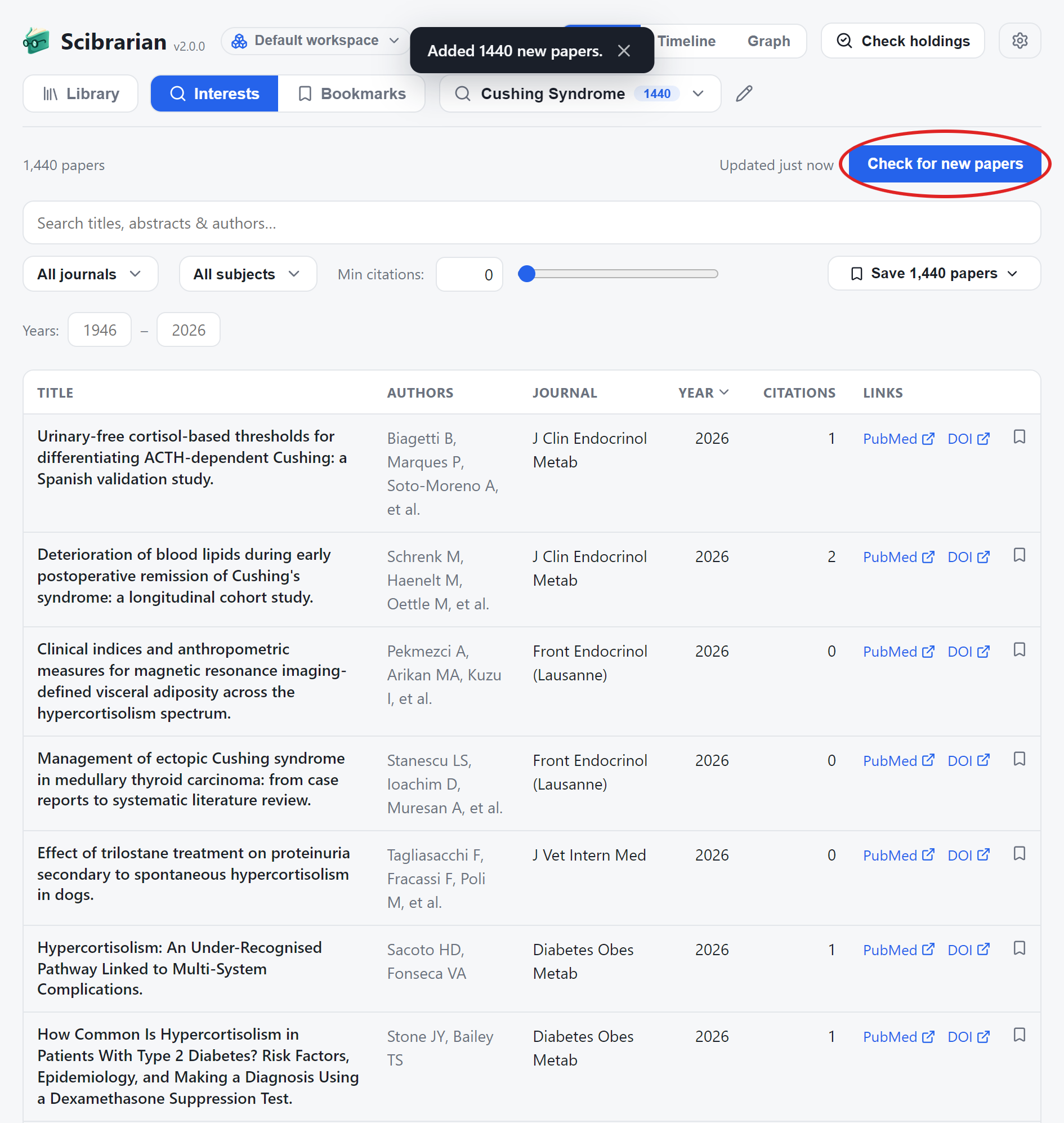
If you kept Search all PubMed journals toggled off, then all of the results will be from the journals that you added in the settings, which guarantees that all results come from reputable sources (unless you picked lousy journals on purpose). Clicking Check for new papers henceforth will add the most recent papers since the last time a poll was done, and will only do a full scan if the scanning criteria have expanded, i.e., increasing the number of journals to search in. Note that the same filtering and analytics features on the Library tab are available on the Interests tab as well.
Bookmarking Papers
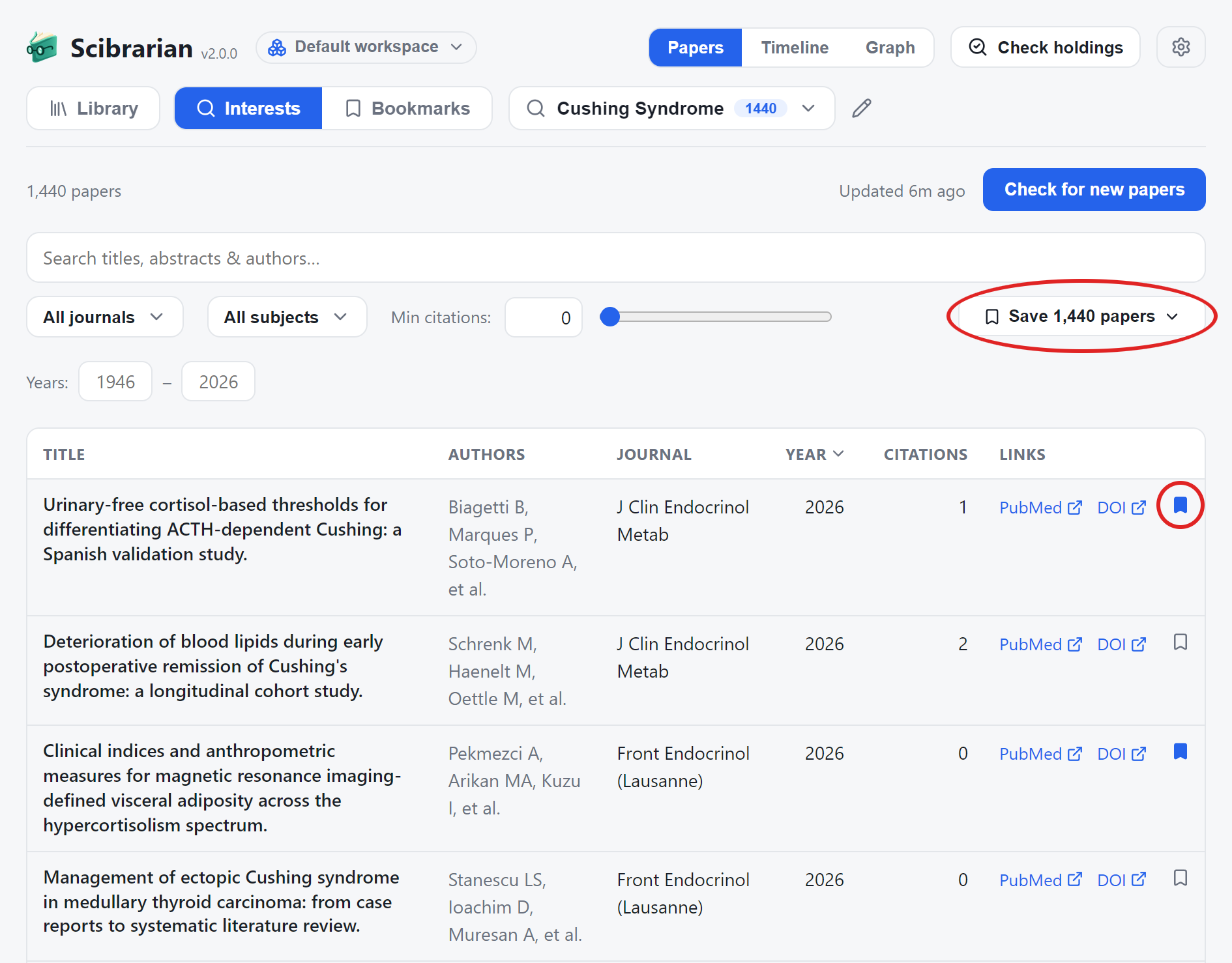
Bookmarks are a useful way to organize papers you’re interested in reading later, like a wishlist of sorts. Each paper fetched for a topic in Scibrarian will have a bookmark icon next to it. You can bookmark papers individually by clicking a bookmark icon or click the Save #### papers button on the right side of the filters to bookmark all currently filtered papers.
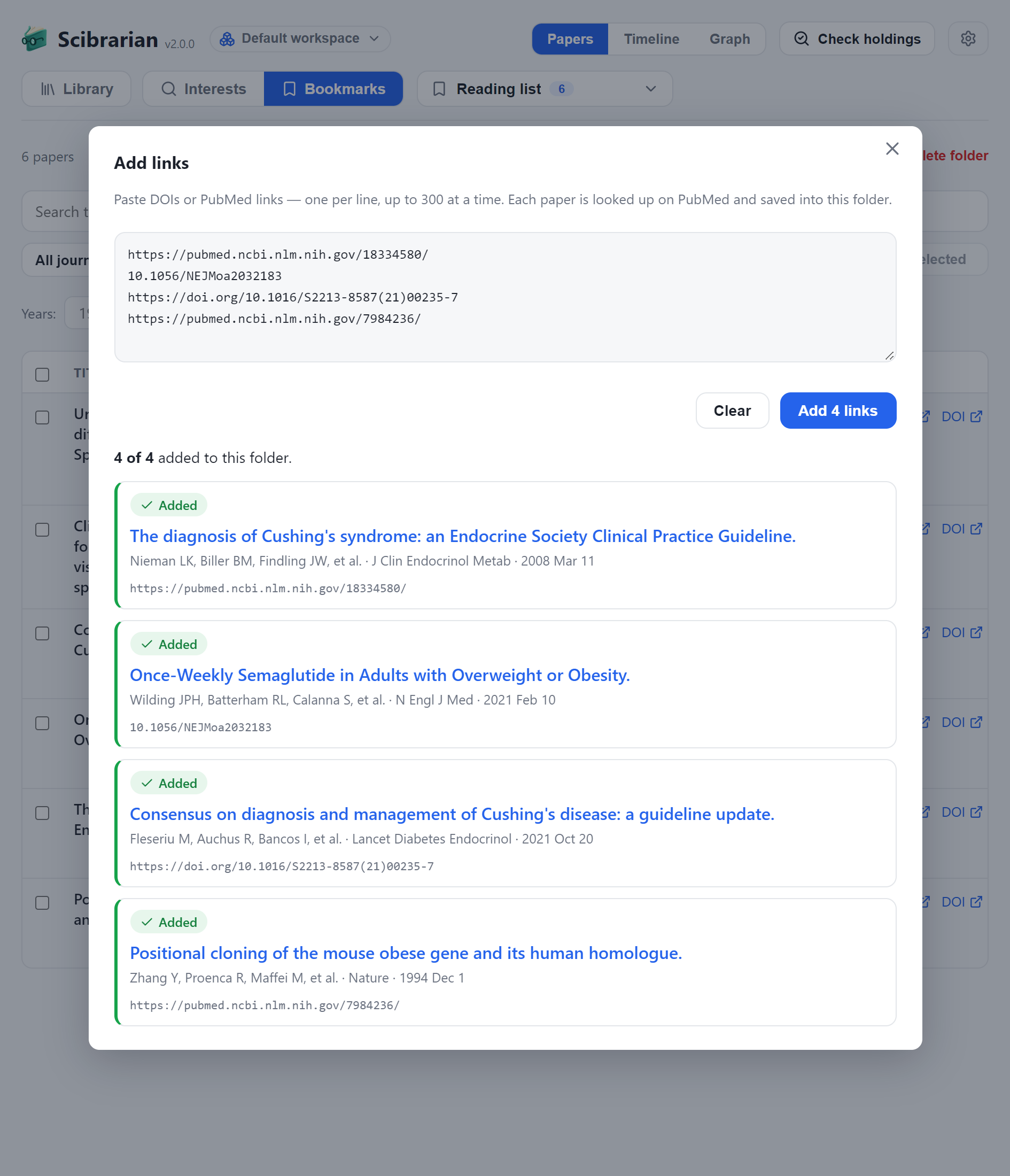
You can also use the Add links button to add bookmarks with DOI or PubMed links. That way, instead of maintaining unsightly bookmark lists in your web browser, you can render them beautifully in the Scibrarian UI.
Bookmarks are divided into folders so that you can organize them however you choose. The same filtering and analysis tools available for Library and Interests are also available for Bookmarks.
The Check Holdings Button
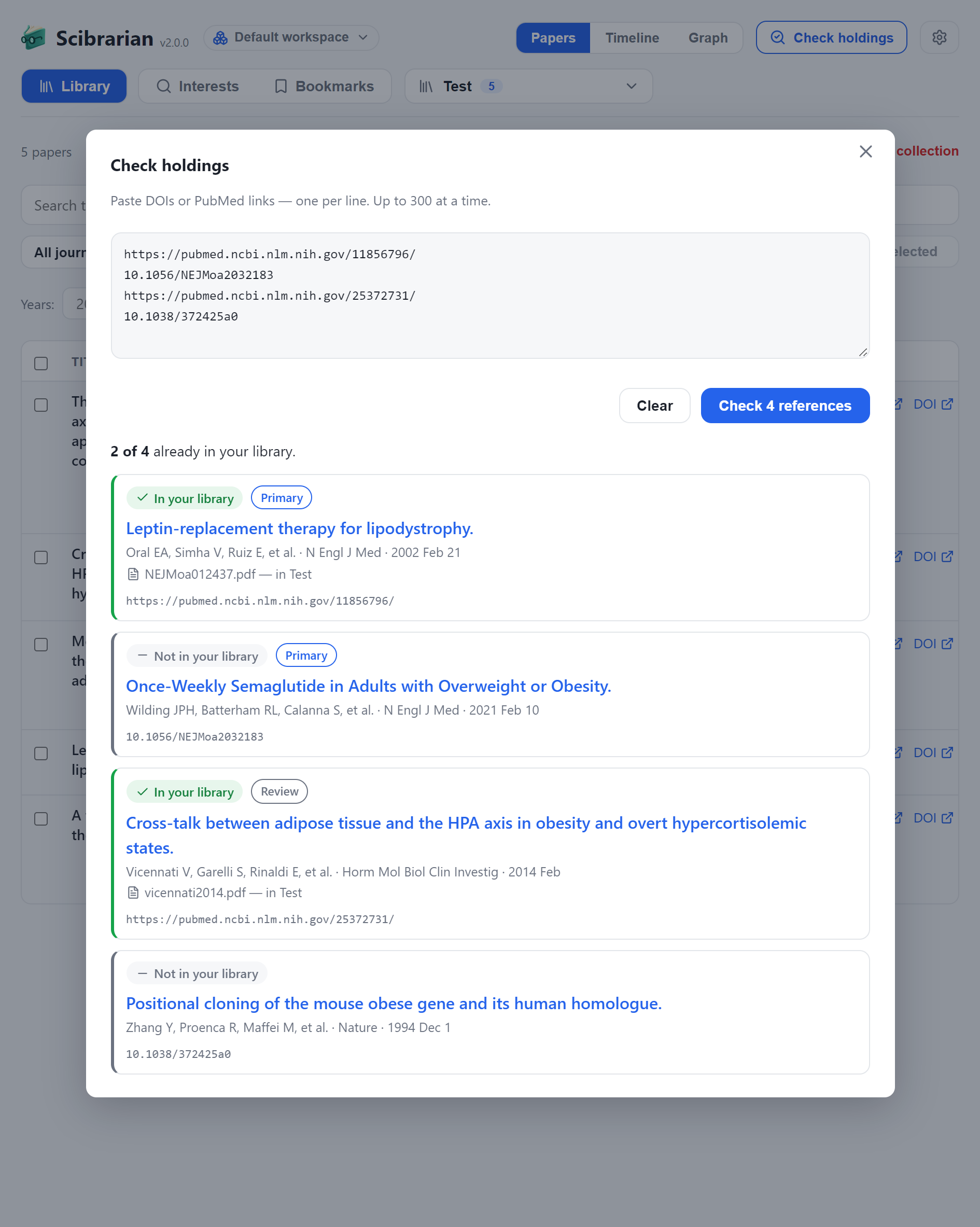
Using the standard search bar at the top of your library is a good way to see if you hold a paper. The Check holdings button can be used for that same purpose, but with more flexibility. First, instead of checking one at a time, you can check up to 300 DOI or PubMed links all at once. Second, if you’re using Scibrarian Desktop and connected to an organization, you will be notified if your organization holds those papers. If they do, you will be able to use them in your own library as well.
Desktop Features
Workspaces
Scibrarian stores your research library, topics of interest, and all other features and settings in one local database for each workspace. Here is where they are stored:
| Platform | Path |
|---|---|
| Windows | %APPDATA%\Scibrarian |
| macOS | ~/Library/Application Support/Scibrarian |
| Linux | ~/.config/Scibrarian |
That means your library, research topics, settings, etc. are all isolated to the current workspace. You can select, rename, or create a new workspace from the dropdown at the top.

Selecting a new workspace will require Scibrarian to restart in order to load the data for that workspace. An example use case for using multiple workspaces is when doing work for multiple clients; each workspace can completely separate the work for each client, so nothing gets mixed up.
Connecting to an Organization
To connect to an organization, the organization must be running Scibrarian Pro Server and give you a pairing code. Enter the pairing code in the settings within the Agency holdings pane. You will then be able to use papers stored in your organization’s library via the Check holdings button. The papers in any newly-created library collections that you create will also be shared with your organization, unless disabled in the settings.
Annotations and the File Cache
The files in your library will open in your default PDF viewer that you use on your computer, so you can annotate or make other edits like normal. Scibrarian will cache any opened file to make this functionality possible, which will take up small amounts of extra disk space. You can clear the cache at any time in the settings; just make sure your files are closed before you do so, otherwise you will not be able to save any pending changes. A reminder will appear on the main screen whenever the cache size exceeds 100Mb, so you don’t have to worry about checking it yourself.

Server Features
Sharing Your Work
Scibrarian has no annoying user login system. Instead, changes are made by entering an admin key that is generated by the owner when the server is created. To unlock admin privileges, click the lock icon on the top right next to the settings icon and enter the admin key. Then you will be able to use any features that modify the server instance, like changing settings, uploading documents, adding topics and polling for papers, etc.
Anyone without the admin key still has full read-only access to Interests and Bookmarks, but cannot open Library documents by default. Instead, they will be linked to the PubMed webpage of each document. If you are a server admin and wish to share Library content, you have two options. First, you can create temporary links to individual papers or collections that will expire after 24 hours. This is done by clicking on the corresponding share icon next to the paper or collection you want to share.
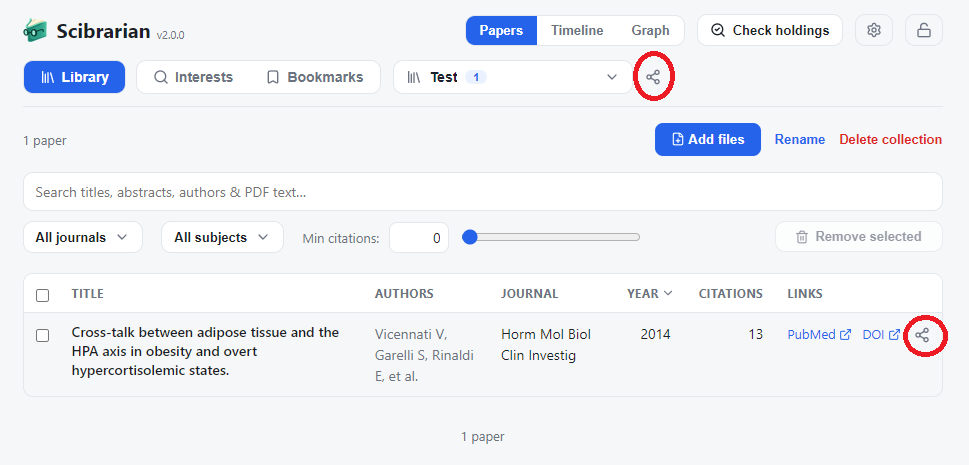
Second, you can use the Open library option in the settings to allow anyone who connects to your server to download your documents at any time.
For more details about server setup, see the self-hosting guide.
Scibrarian Pro Server Features
Collaborative Pairing
Scibrarian Pro Server is built for agencies who want to keep an organized research library for their hired writers to use. That way, they can avoid bleeding the budget on wasteful, redundant purchases of material. It includes all of the features of the open source Scibrarian Server, plus additional collaborative features to improve professional workflows.
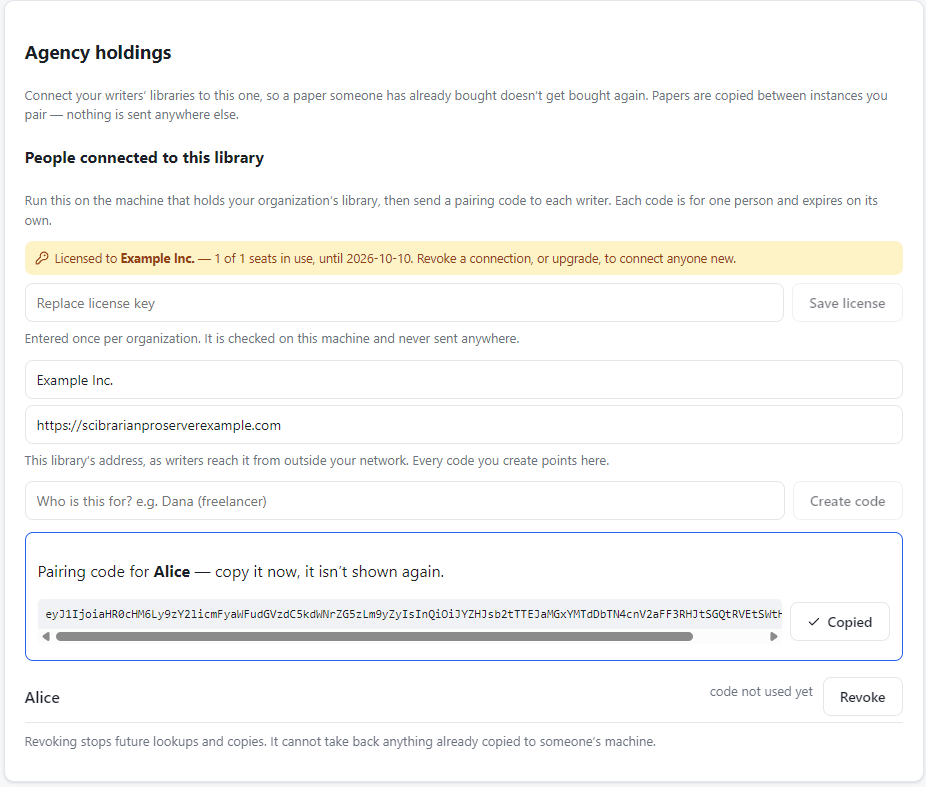
Agencies work with Scibrarian LLC to obtain a license key for this feature. An agency installs Scibrarian Pro Server the same way the open source counterpart would be installed, then enters their license key in the settings. The license key will allow an agreed-upon number of writers to be connected simultaneously (seats). The agency can then generate pairing codes to provide for the writers, who can enter the pairing code in Scibrarian Desktop.
The Agency’s View
The Writer’s View
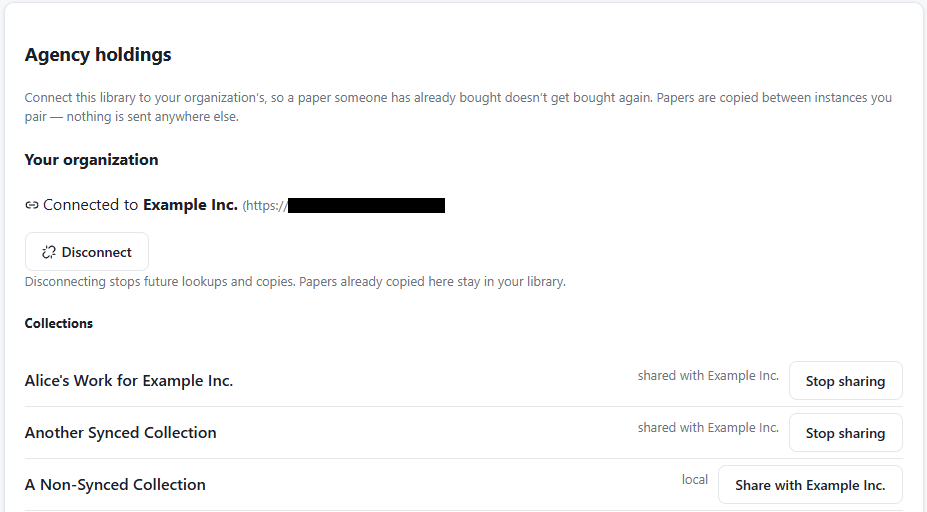
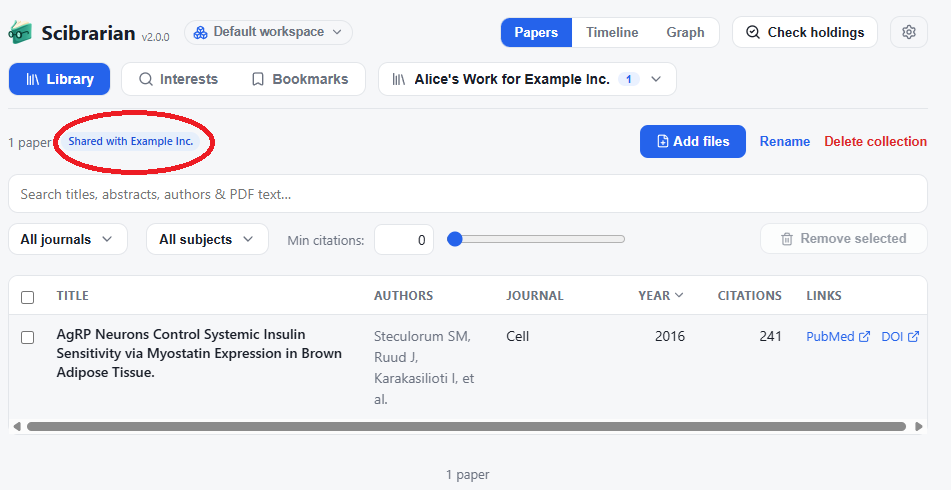
After the writer is connected to the agency, the collections they create in Scibrarian Desktop will be synced with the agency’s library automatically. That means no more manually asking writers to email the batches of papers they used.
The Writer’s View
The Agency’s View
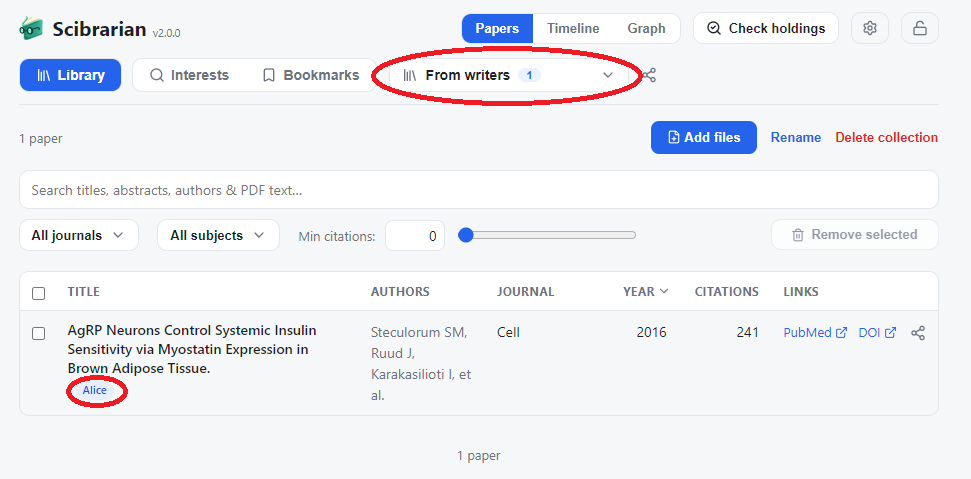
“From writers” is a collection that is automatically created when any writer shares at least one paper with the org. It contains all papers from all writers that have connected and shared their work, and otherwise behaves like any other collection.
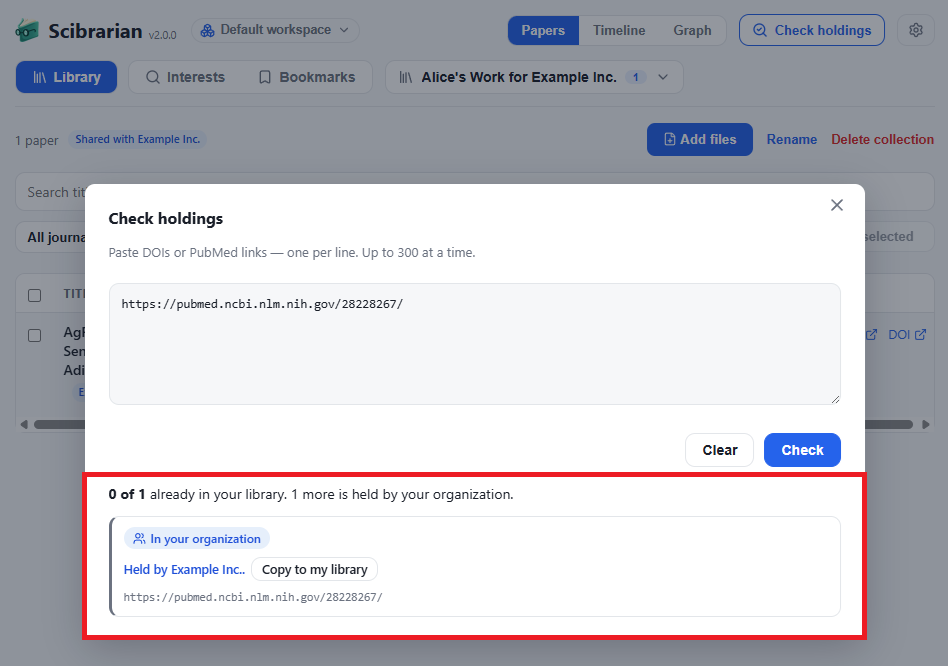
Additionally, when writers use the Check holdings feature, they can see if the paper they are looking for is in the agency’s library already. If so, they can use it for their work; the collaboration goes both ways.
The Agency’s View
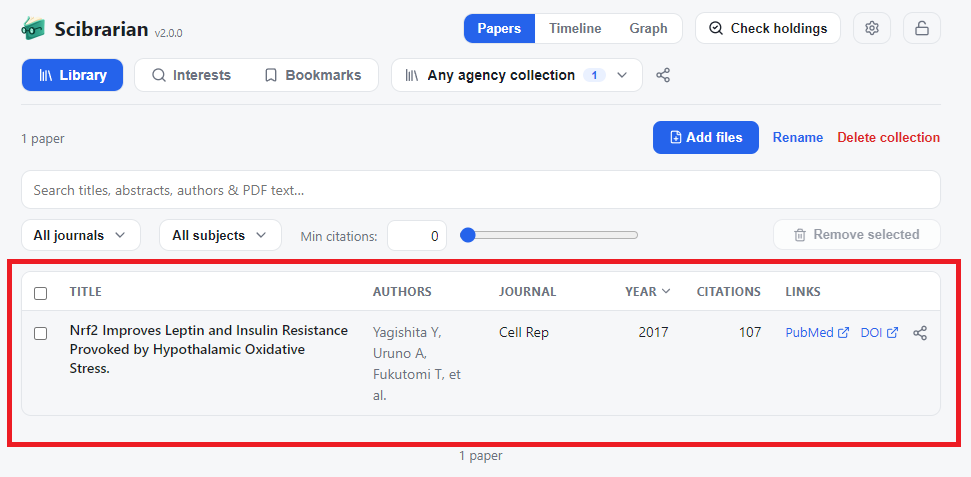
The Writer’s View
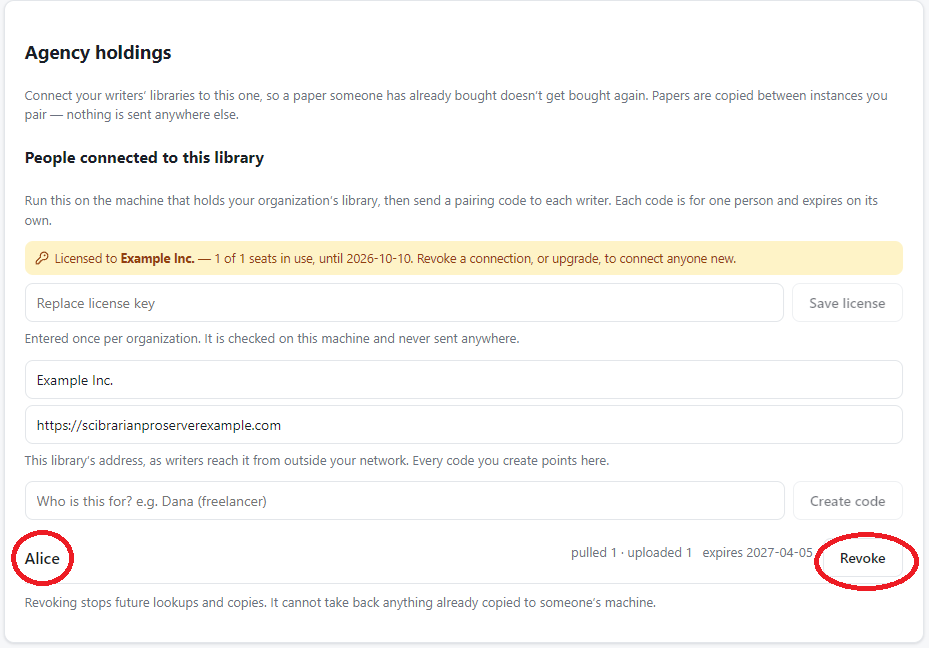
Agencies can terminate a writer’s connection to their org at any time, so that writers don’t stay connected once their contracts end. Otherwise, the connection expires after 180 days. If a writer is disconnected by mistake, or the 180 day expiration is reached, the agency can simply provide a new pairing code for the writer to reconnect, and the work continues as usual.
Something missing, or wrong? Open an issue on the repository.